
24.2 The Variable Bindings table
The next step is to make use of the procedure call in the second test case as well.
- Action Replace the Check text node of the second test case by a procedure call to checkFinalPrice. You can simply copy the respective node from the first test case or add the procedure call as learned in the previous chapter.
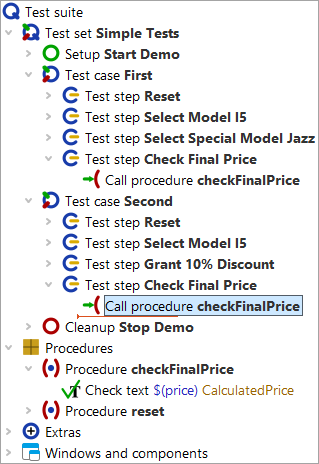
Note If you added the procedure call by a copy or drag-and-drop operation from the procedure itself, you will find the price in the Variable definitions table of the procedure call. This is the eventual goal. However, at this stage the default value is being explained. To follow the tutorial exactly, delete the default value by pressing the red X above the table.
- Action Verify QF-Test is configured to pause at errors as shown in Set debugger options to pause on error.
- Select the 'Test case: Second' node.
-
Execute it by pressing
 or
Enter.
or
Enter.
An error message shows up indicating different values for the price expected and the price received. To investigate, the run log is usually the first place to check, but there is another view worth knowing about.
- Action So click OK to close the error message.
In debugging mode you will find an additional bottom right section of the QF-Test window showing a list of nodes with variables bound to those nodes.
- Action You might want to resize the variable bindings table in case it is too small to see all its content.
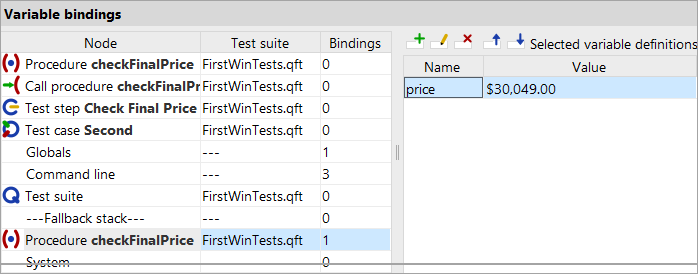
The variable bindings table is very useful for debugging. It comes in quite handy, too, when working with procedures and trying to understand the way QF-Test figures out which variable value to use. It shows the current values of the variables.
Note QF-Test always checks the variable bindings table from top to bottom.
You can see that the first rows of the table have no bindings at all. Then there is a binding at the level 'Globals' and another one in the fallback stack for the procedure 'checkFinalPrice'. The global variable is used for the client connection, which has been set when starting the application (cf Starting the Application). The other variable is more interesting to us - only it has the wrong value.
The default value is intended to be used for the parameter if no value has been defined elsewhere. This is why the parameter was added to the 'Parameter default values' table of the procedure node.
There are several ways to pass the correct value when calling the procedure. One is to add a new row to the variable definitions table of the 'Call procedure' nodes, similarly to what you did at the 'Procedure' node in the last section.
If the procedure is called multiple times within the test suite, there is a better way:
- Action
Stop the current test execution clicking the toolbar button
 .
.
-
Right-click the 'Procedure' node and select
»Additional node operations«-»Update parameters of references« from the popup menu.
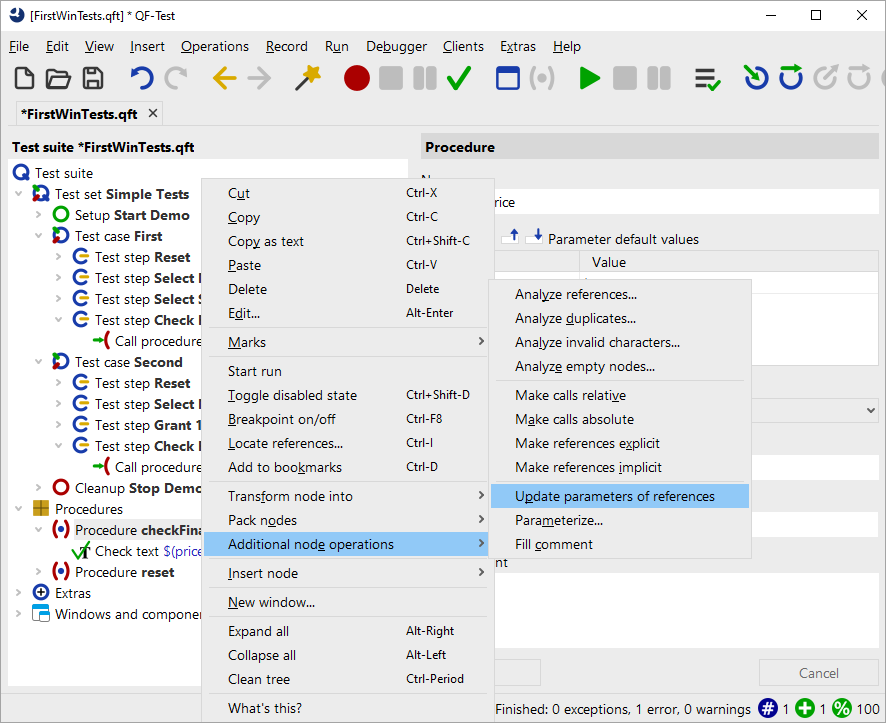
Figure 24.7: Popup menu for 'Additional node operations' - In the following dialog, check the tick mark for »Add missing parameters to callers« is set and click OK.
In the 'Call procedure' nodes, QF-Test adds a row for every default parameter to the variable definition table of the procedure call. It also copies
the default value of each default parameter. Here it is
the parameter price with the value $30,049.00.
You might notice that the numerical value of the price variable is still wrong in the second case, regardless of whether it is defined implicitly as a default value or explicitly via a parameter. For now, keep that error to demonstrate additional means of debugging.
- Action Close the 'Updated nodes' dialog QF-Test opened to inform you about the updated nodes.