
29.1 Starting the Application
To begin, the application under test should be started from within QF-Test. The Quickstart Wizard helps generate a suitable start sequence.
- Action Please open a new, empty test suite via »File«-»New test suite...«.
- Open the Quickstart Wizard via the menu »Extras«-»Quickstart Wizard...« .
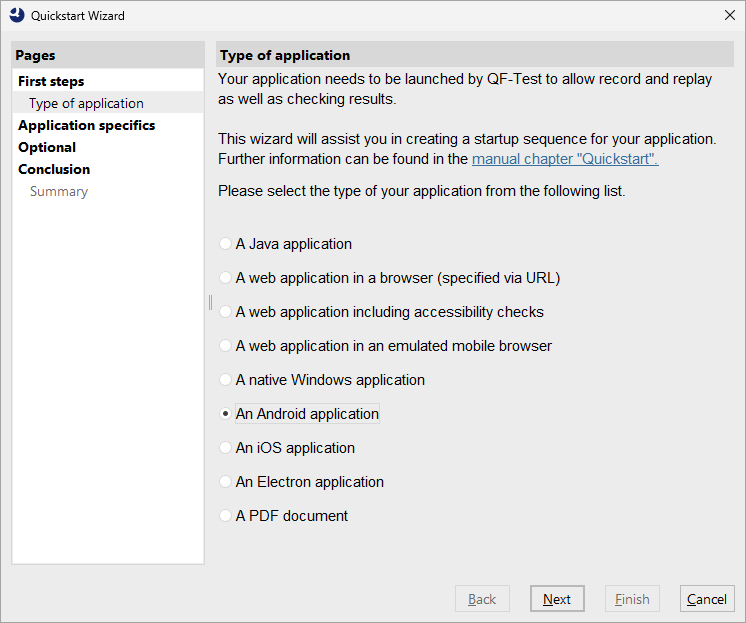
In the first step choose whether it is an Android application or an iOS application.
- Action Select Android application or iOS application.
- Press Next.
If you select iOS application, follow the specific steps to select the device and the app to test.
You can find the Carconfig app (CarConfig-iOS-Simulator.zip) under
../qftest-11.0.2/demo/ios/
in your QF-Test installation.
If you select an Android application, an additional page lets you decide whether an emulator should be started or whether a real device or a running emulator should be used.
- Action Choose between Start emulator or Connect to running emulator/real device.
-
Action
Then select the desired device name from the list of available devices.
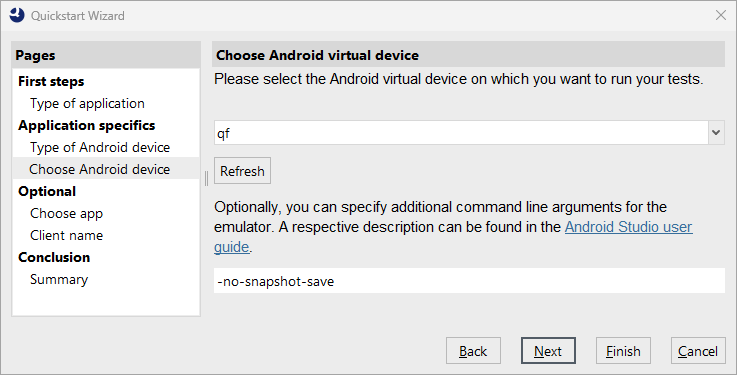
Figure 29.2: Select device and app for Android
When selecting the Android APK note that it is not shipped with QF-Test by default.
If you ran the carconfigAndroid demo, the app should have been downloaded to
${qftest:dir.user}/android, so you can directly enter
${qftest:dir.user}/android/CarConfigurator.apk.
Alternatively you can download the APK from https://www.qftest.com/fileadmin/Webdata/pub/android/CarConfigurator.apk
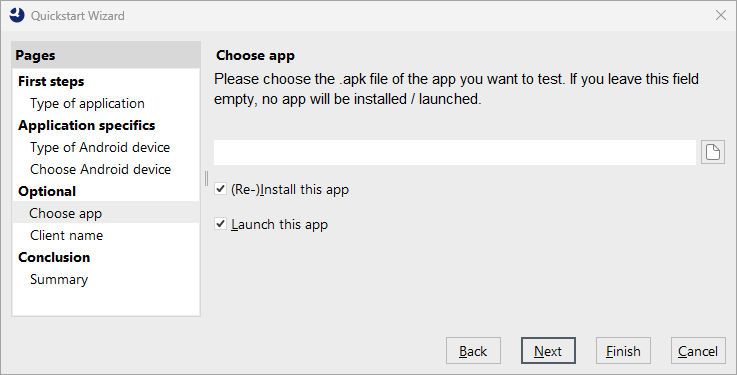
Action Please press Finish to complete the wizard.
The generated start sequence appears under the Extras section of the test suite and contains all steps necessary to start the app on the selected device.
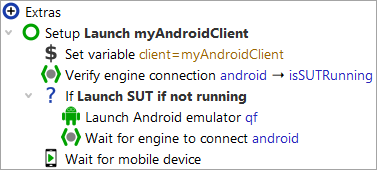
Let's try it out:
- Action Make sure the node Setup: Start CarConfigurator is selected.
-
Press
 or simply hit the Enter key.
The selected app should now be installed and started on the device or emulator.
-
Action
Save the test suite (
 or
»File«-»Save«
or Ctrl+S).
or
»File«-»Save«
or Ctrl+S).
-
Enter a name, e.g.
FirstAndroidTests.qft.