
32.4 Activating debugger mode on error or exception
When debugging a test it is often helpful if test execution stops and switches to debugger mode exactly when an error, an exception or sometimes even just a warning occurs.
Using this technique we will debug the second test case in this section and the next.
- Action Please open the Debugger menu and change the default settings as follows:
- Click the menu item »Debugger«-»Debugger enabled« to enable it.
- Click the submenu item »Debugger«-»Options«-»Break on error« to enable this function as well.
If you now open the Debugger menu and the Options submenu again, it should look like this:
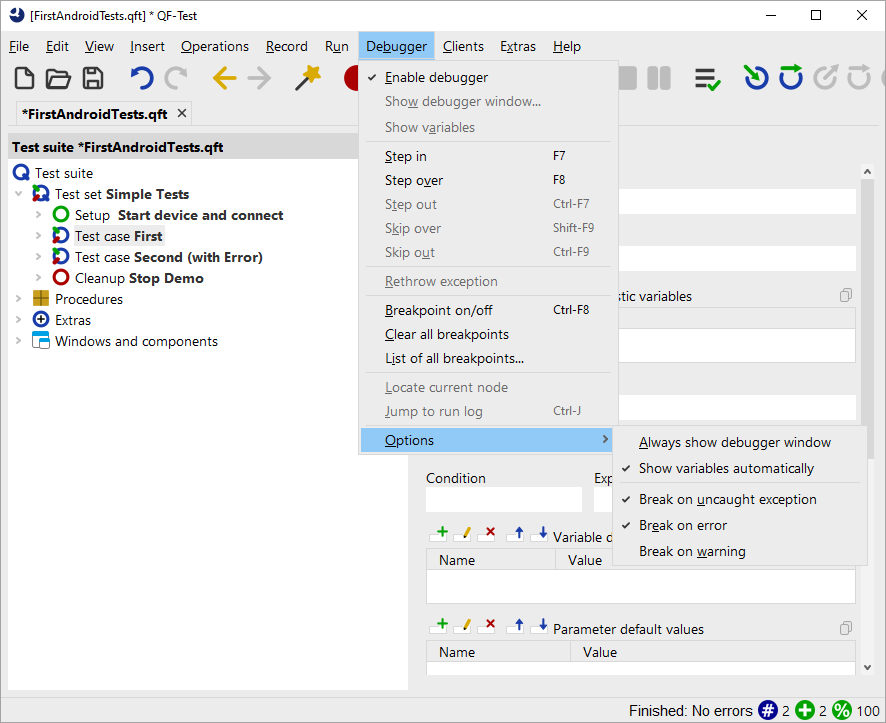
We have to change the debugger options because otherwise the test would just run through, analogous to the previous examples from chapters one and two.
- Action
Select the Test suite node and then start the test via "Start test run"
 .
.
QF-Test stops at the erroneous node and switches to debugger mode:
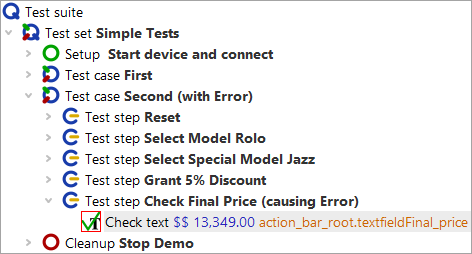
The node that caused the error is marked by a red square. In addition, an error dialog appears that provides details about the cause of the error. From there we switch to the run log which, as so often, is the key to fixing the problem.
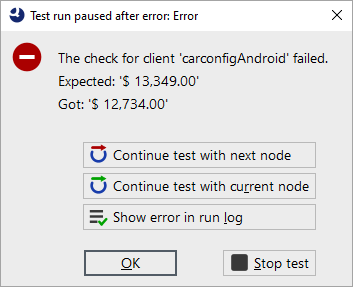
- Action Click the Jump to run log button in the error message.