
28.5 The Run log for Error Diagnosis
QF-Test logs detailed information for every test execution.
-
Action Please open the latest run log by one of the following options:
- either by pressing the Show run log button of the error dialog
or in case you have already closed the dialog
-
by pressing toolbar button
 or
or
- by pressing Ctrl+L.
Note The most recent run logs are also listed at the bottom of the Run menu of the main window.
The run log comes up in a separate window displaying the logged actions of the test case you've just executed:
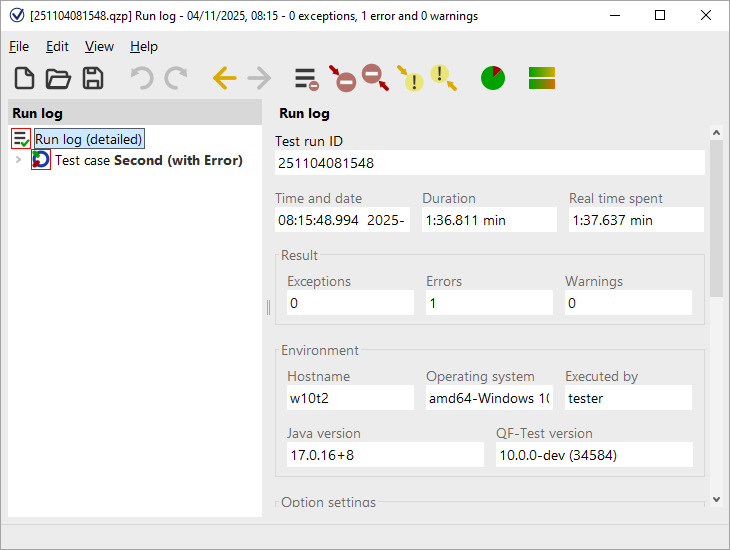
The run log reflects the tree structure of the test suite view you are already familiar with. When you click on one of the nodes on the left side, the properties of the event including time stamp and duration will be displayed on the right.
In the tree on the left you will notice nodes surrounded by a red border. These indicate that a problem occurred in a child node. If you keep expanding the red nodes, you'll eventually come to the actual error node.
-
ActionPlease use an easier way to find the error source by pressing the
Find next error
 toolbar button or the [Ctrl-N] key shortcut.
All nodes with red highlighting have been expanded and the actual error node has been selected:
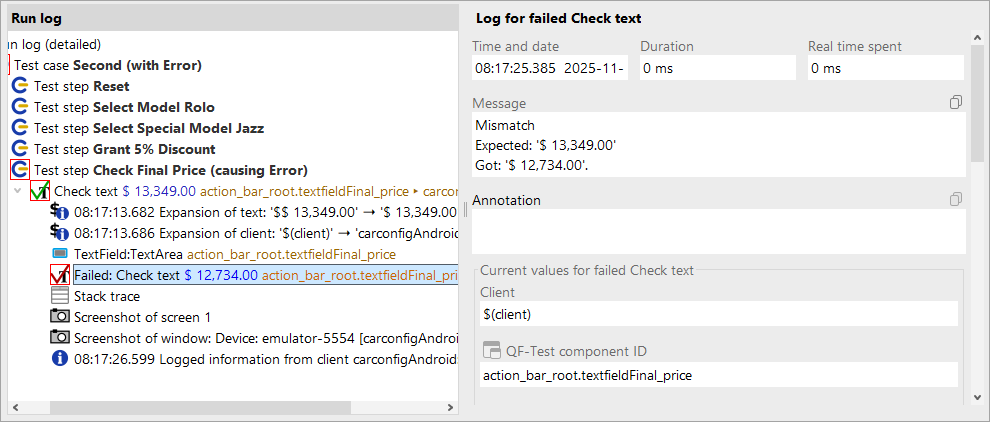
The error message on the right says that the expected value of the final price field differs from the actual one. Of course this error is there by intention as the second test case is supposed to show us how to analyze an error.
Another helper for error analysis is the Screenshot node of the SUT taken at the time when the error occurred. Its details view contains a full screenshot of the screen at the time of the error, which is often useful for determining the cause of the error. The following image shows such a screenshot node:
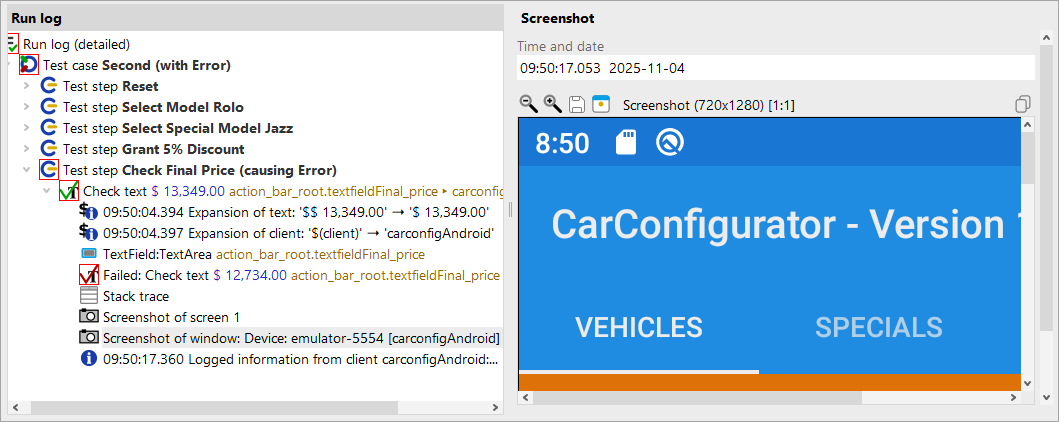
In addition to screenshots of all monitors, QF-Test also saves images of the client windows at the time of the error. This allows you to analyze their contents even if they are covered by other dialogs or windows.
NoteThe information gathered in a long test run accumulates and can eat up enormous amounts of memory.
This is the reason why QF-Test is configured by default to create a compact run log, keeping only the relevant information
for report generation and error diagnosis.
This functionality can be configured via the option "Create compact run log" within
»Edit«-»Options«-»Run logs«-»Content«.
The root node of the run log tells you whether it is a compact or detailed run log.
You can also configure the number of screenshots to be saved.