
Web54 Configuring the "Accessibility Checks" node
The various accessibility tests offered by QF-Test can be configured via the Accessibility Checks node.
Similar to the Install CustomWebResolver node, it is configured via YAML.
You can configure the rules and elements to check, as well as additional parameters such as messages to
ignore.
The node also provides many options for configuring logging that can be configured outside the YAML syntax.
This chapter covers the node’s YAML configuration. The logging options are described in detail in the
overview of the Accessibility Checks node.
10.0+
Prior to QF-Test version 10.0, this was handled via procedures in the
standard library qfs.qft. These remain available for compatibility.
The procedure parameters have been migrated either into the YAML configuration or into the node’s fields.
Using the "Transform node into" function, you can convert the old procedure call into the
new Accessibility Checks node (right-click the procedure call → "Transform node into" → "Accessibility Checks").
54.1 YAML syntax of the Accessibility Checks node
Only basic knowledge of YAML is needed to configure the Accessibility Checks node.
A brief overview can be found in Install CustomWebResolver node – Syntax.
The categories Rules to Check and Issues to Ignore are at the top level. An overview of these categories and subcategories follows in later sections.
The selection menu that can be accessed via the "Edit" button
 next to the line numbers adapts to the current context and shows all actions
applicable to the currently selected line.
next to the line numbers adapts to the current context and shows all actions
applicable to the currently selected line.
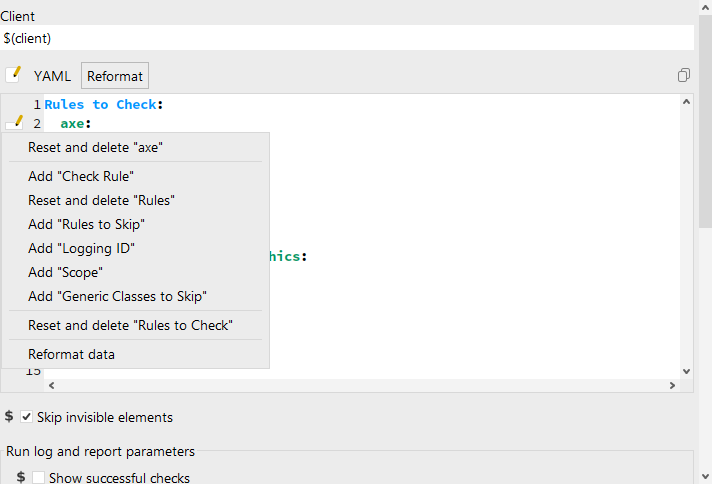
Using this menu helps you maintain a complete overview of the available actions, and it automatically provides the correct syntax.
The following briefly explains all configuration categories and their subcategories that can be used in YAML.
54.2 Top-level category Rules to Check
In the Rules to Check category, define the accessibility tests that QF-Test should execute.
The following checks are currently available:
-
axe -
Rules to Check – axe: Accessibility tests based on the axe-core library (see Axe checks with QF-Test)
-
color-contrast-simple-graphics -
Rules to Check – color-contrast-simple-graphics: Color contrast checking for simple non-text elements such as icons, buttons, etc. (see Color contrast check for simple graphics)
-
focus-visible -
Rules to Check – focus-visible: Checking focus visibility when the user moves focus to elements (see Focus visible check)
-
language-lang-value -
Rules to Check – language-lang-value: Checking the value of the HTML
langattribute (see Checking the "lang" attribute)
Rules to Check:
  axe:
    Rules:
    - button-name
    - input-button-name
    - aria-command-name
    Scope: "genericDocument"
    Logging ID: Button Title Tests
  color-contrast-simple-graphics:
    Generic Classes:
    - Icon
    Generic Classes to Skip:
    - Icon:Decorative
  focus-visible: true
  language-lang-value:
    Scope: "#iframe:Videoplayer"
Expected Lang Value: de 54.2.1 Generic parameters of accessibility tests
Each accessibility test can be configured with the following parameters:
-
Scope -
Specify the QF-Test ID of the Component within which the checks should be applied. The tests apply only to this component and its child components.
If the (Smart)ID of the specified component contains YAML-specific special characters such as "#", the value must be wrapped in quotes for the component to be recognized correctly.
Rules to Check:
  color-contrast-simple-graphics:
    Generic Classes:
    - Icon
    Scope: "#Menubar:name=Navbar"
  focus-visible:
    Scope: "#TabPanel:name=TabbedPane"
Example 54.2: Restricting the scope to components addressed via SmartIDs Default:
genericDocument, i.e. the entire page. -
Generic Classes to Skip -
A list of Generic classes names to skip during testing. These classes and any subclasses are not checked.
Rules to Check:
  axe:
    Rules:
    - nested-interactive
    - color-contrast
    Generic Classes to Skip:
    - Button
    - CustomClass
Example 54.3: Excluding multiple classes from checking Default:
empty- no classes are excluded from checking. -
Check Rule -
A Boolean parameter that controls whether the rule is executed. This is particularly useful for quickly disabling individual tests while debugging.
You can also run accessibility tests with default values by setting
trueafter a standalone rule - a shortcut forCheck Rule: true.Rules to Check: axe: Check Rule: false Rules: - wcag2a - wcag2aa focus-visible: trueExample 54.4: Disabling axetests and using theCheck Ruleshortcut to runfocus-visibleDefault:
true
54.2.2 Rules to Check – axe
For Axe checks with QF-Test, you can configure the rules or rule groups to check as follows:
-
Rules -
Rule IDs of axe rules, or the tags defined by axe (dequeuniversity.com/rules/axe/html).
Each rule has a name (
rule-id) that you can use to reference it.If a rule is required to meet specific accessibility standards, that standard is reflected in the rule’s tags. For example, a rule that is required to meet a WCAG 2.1 guideline at Level AA will include the "wcag21aa" tag, among others.
You can execute rule groups by specifying their tags.NoteImportant: In a single call, the axe rules to execute are specified either directly via rule IDs or via group membership (tags). You can pass multiple rule IDs or multiple tags - but mixing IDs and tags is not possible.
Rules to Check:
  axe:
    Rules:
    - wcag2a
    - wcag2aa
    - wcag21a
    - wcag21aa
    - wcag22aa
Example 54.5: Executing all WCAG-relevant axe rules via tags If the parameter is left empty or explicitly set to
all, all rules provided by axe-core are checked.Default: all tags of axe rules relevant to WCAG compliance
-
Rules to Skip -
If the
Rulesparameter is empty or populated with tags, you can exclude individual rules from checking here. Provide a list of axe rule IDs.Rules to Check: axe: Rules: - wcag2a - wcag2aa Rules to Skip: - button-name - aria-required-attrExample 54.6: Excluding individual rules via Rules to SkipDefault:
empty -
Logging ID -
Assign a name under which the rules defined in this axe check are listed in the run log.
Rules to Check:
  axe:
    Rules:
    - button-name
    - input-button-name
    - aria-command-name
    Logging ID: Button Title Tests
Example 54.7: Grouping multiple axerules under a name for the run logDefault:
empty -
Scope -
See "Scope".
Default:
genericDocument, i.e. the entire page. -
Generic Classes to Skip -
See "Generic Classes to Skip".
Default:
empty- no classes are excluded from checking. -
Check Rule -
See "Check Rule".
Default:
true
54.2.3 Rules to Check – color-contrast-simple-graphics
For Color contrast check for simple graphics, you can configure the elements to check as follows:
-
Generic Classes -
The name of one or more generic classes (see generic classes). All elements of these classes within the
Scopeare checked for color contrast.Rules to Check: color-contrast-simple-graphics: Generic Classes: - Icon - <SVG> Generic Classes to Skip: - Icon:DecorativeExample 54.8: Setting the generic classes to check Default:
Graphics -
Scope -
See "Scope".
Default:
genericDocument, i.e. the entire page. -
Generic Classes to Skip -
See "Generic Classes to Skip".
Default:
empty- no classes are excluded from checking. -
Check Rule -
See "Check Rule".
Default:
true
54.2.4 Rules to Check – focus-visible
For Focus visible check, you can limit the length of the test with the following parameter:
-
Allowed Number of Elements without Tabindex -
Interactive HTML elements such as
<button>,<input>, or<a>are focusable by default. Using thetabindexattribute, other elements in HTML can also be made focusable.To ensure that all elements with an explicitly set
tabindexare checked, the number of such elements is the lower bound for the number of simulated Tab key presses in the test.
WithAllowed Number of Elements without Tabindex, you can set an upper bound on the number of key presses.Rules to Check: focus-visible: Allowed Number of Elements without Tabindex: 500Example 54.9: Increasing the maximum number of Tab key presses Default:
300 -
Scope -
See "Scope".
Default:
genericDocument, i.e. the entire page. -
Generic Classes to Skip -
See "Generic Classes to Skip".
Default:
empty- no classes are excluded from checking. -
Check Rule -
See "Check Rule".
Default:
true
54.2.5 Rules to Check – language-lang-value
For Checking the "lang" attribute,
you must define the expected value of the HTML lang attribute.
-
Expected Lang Value -
The language value expected in the HTML
langattribute (W3Schools). Examples include "en" for English, "de" for German, or "fr" for French. You can specify a regional variant by appending a region, for example "en-GB" for British English, or "fr-CA" for Canadian French.Rules to Check: language-lang-value: Expected Lang Value: deExample 54.10: Setting the expected language Default:
en -
Scope -
See "Scope".
Default:
genericDocument, i.e. the entire page. -
Generic Classes to Skip -
See "Generic Classes to Skip".
Default:
empty- no classes are excluded from checking. -
Check Rule -
See "Check Rule".
Default:
true
54.3 Top-level category Issues to Ignore
In the Issues to Ignore category, specify issues that QF-Test should ignore when generating
run logs and reports.
This is helpful for excluding known issues with very low remediation priority from logging.
No information is lost overall because the issues remain listed in this parameter - the run log and
report are less cluttered.
With Issues to Ignore, specific errors and warnings are ignored.
It is therefore recommended to create this configuration based on existing error messages,
because it requires details from the error message.
Issues to Ignore:
- URL: https://
  Errors:
  - Rule ID: color-contrast
    Message: "The element has an insufficient contrast of [0-2]"
    Elements:
    - XPath: "/html/body/div[2]/div[4]/div/p[5]/a[2]"
    - XPath: "/html/body/div[2]/div[4]/div/p[7]/a"
  - Rule ID: focus-visible
    Message: "The tabbable element does not change under focus"
    Elements:
    - XPath: "/html/body/div[2]/div[3]/div/div/div/div/div/figure/div/div[2]/a"
  Warnings:
  - Rule ID: video-caption
    Message: "No captions could be found for the element"
    Elements:
    - XPath: "/html/body/header/div[3]/video"
- URL: https://www.example.com/components/lists.html
  Errors:
  - Rule ID: listitem
    Message: "List item does not have a valid parent element (<ul>, <ol>)"
    Elements:
    - XPath: "/html/body/div[2]/div[18]/div/div/div/div/ul/div/div/li[4]"
    - XPath: "/html/body/div[2]/div[18]/div/div/div/div/ul/div/div/li[5]"
    - XPath: "/html/body/div[2]/div[18]/div/div/div/div/ul/div/div/li[6]"
    - XPath: "/html/body/div[2]/div[18]/div/div/div/div/ul/div/div/li[7]"
Rule ID, Message, and XPath must match for an error or
warning on the page identified by URL for it to be excluded from the run log.
There are no default values for the "Issues to Ignore" parameter.
54.3.1 Issues to Ignore – URL
The issues to ignore are defined separately for each page under test. The first step is therefore to specify the URL of the page on which the issue occurs.
The URL specified here does not have to be the complete URL of the page
under test, but can be a substring of the address.
Alternatively, a suitable regular expression can be used (see Regular expressions).
The settings for the associated warnings and
errors (Issues to Ignore – Errors and warnings) refer to the URL
specified here.
For example, if you specify "https://www.qftest.com" as the URL, the subsequent settings for the
specific issues that should be ignored will apply to all pages whose URL includes "https://www.qftest.com."
You can also specify all pages that use HTTPS by entering "https://" as the URL value.
54.3.2 Issues to Ignore – Errors and warnings
Next, decide which errors or warnings should be ignored in the run log. The following configuration options are list entries under "Errors"/"Warnings", and the options are the same in both cases:
-
Rule ID -
The ID of the rule (Top-level category Rules to Check) to ignore in the run log. You can find this at the beginning of an error message. For a test using the axe-core library (Axe checks with QF-Test), this corresponds to the "rule-id" listed at dequeuniversity.com/rules/axe/html/.
Otherwise, it matches the value provided under the
Rules to Checkparameter, such as "focus-visible" or "color-contrast-simple-graphics." -
Message -
The error message to ignore.
You can pass the text of the entire error message (found in the message below the elements in the run log/report), but a substring of the message is sufficient.
The specified value is interpreted as a regular expression (see Regular expressions).If the
Messagecontains YAML-specific special characters such as ":" or "#", the value should be wrapped in quotes - you can do this by clicking the "Reformat" button above the YAML definition. -
Elements -
A list of problematic elements that are listed in the error message. Elements are specified via XPath.
Elements:
- XPath: /html/body/main/article/section/h2
- XPath: "/html/body/main/article/section/ul/li[2]/div/a/h3"
- XPath: /html/body/main/article/section/ul/li/div/p
Example 54.12: Specifying the elements to ignore