Videos
 QF-Test Blog
 Manual
 Tutorial
 FAQ
FAQ
The new MCP server in QF-Test doesn’t just hand AI agents a generic, one-size-fits-all set of tools. You can also build your own procedures in QF-Test and expose them as purpose-built MCP tools, tailored to your application. We call this the MCP toolkit: your own QF-Test procedure library, turned into a bespoke, self-documenting, low-code toolset that any AI agent like Claude Code or Copilot can call directly.
This is a big innovation in QF-Test 11, and its usefulness goes well beyond test automation: Since QF-Test can drive almost any application (web, desktop, mobile, even PDF documents) your MCP toolkit can act as a bridge that makes a legacy application MCP-aware, letting an AI agent control it even though the application was never built with AI or MCP in mind.
In this post we’ve collected the best practices we discovered so far — for when a procedure deserves to become a tool, how to name and describe it, and how to fit it into QF-Test’s security model.
When to turn a procedure into an MCP tool
You can expose any QF-Test procedure as an MCP tool by adding the @mcp/tool doctag to its description field (or @mcp/tools to the enclosing package).
A custom MCP tool has one big advantage over the generic call_procedure tool: it’s self-documenting. The AI gets a dedicated name, parameter list, and description without ever needing to know the exact suite, procedure name or its arguments in advance.
That convenience has a cost, though: every registered tool takes up space in the AI’s context window. Register too many, and the AI has a harder time picking the right one. The actual limit depends on the AI model in use, but you should keep the set of enabled tools as small as you can.
That’s why building your MCP toolkit works best when you encapsulate large, multi-step business-logic actions (“Log in”, “Create new user”, “Place an order”) rather than exposing procedures that just wrap individual steps. Especially, you should not put “AI Instruction” nodes into your tools. This only introduces an extra layer of indirection and doesn’t give the AI anything it couldn’t already do itself.
You should also resist the temptation to expose your entire procedure library 1:1. Instead, create a dedicated suite of tool procedures that call into your library, or explicitly mark only the procedures that make good tools.
Granularity: higher-level beats low-level
In general, the higher-level your MCP tools are, the better. Every manual click, keystroke, or navigation step performed by an AI agent costs a comparatively large number of tokens, and the AI reasons through each one individually. QF-Test, on the other hand, executes sequences of clicks, keyboard input, and checks natively — much quicker and more reliably than even the best AI agent driving the UI step by step. A tool that wraps such a sequence lets the AI delegate the entire thing to QF-Test in a single call. This is is both dramatically faster and far more token-efficient.
What not to expose
Not every procedure makes a good tool. A few anti-patterns to watch out for when building your MCP toolkit:
- Context-dependent procedures. If a tool only makes sense in a specific application state, the AI needs a way to detect that. Ideally an MCP tool always does something useful; at worst, it should fail with a helpful message that explains why it didn’t apply right now.
- Long-running, stateful, or environment-dependent procedures need extra care in how they’re wrapped, since their behavior can be harder for the AI to predict and recover from.
@mcp/timeoutlets you adjust the timeout for tools. When the timeout ends, the underlying task will continue in the background until completion. - High-impact actions. AI models can make mistakes or be manipulated. Don’t expose tools that could cause unacceptable damage if misused. Keep destructive actions out of the toolkit, or gate them behind additional safeguards.
Writing tool descriptions the AI can actually use
When an LLM decides which tool to call, all it has to go on is the tool name, the parameter names (and any descriptions you provide), and the description drawn from the procedure’s comment. Put yourself in the AI’s shoes: it knows nothing about your application’s domain or terminology by default.
Here are some concrete suggestions to keep in mind:
- Explain what the tool does, when to use it and what goals can be achieved by using it.
- List valid or possible values for each parameter explicitly in its
@paramdescription. Also explain where to get possible input values from, if applicable. - Design the tool so it’s hard to use wrong in the first place. The less you have to explain, the fewer failure modes you have to guard against.
- Keep descriptions short and to the point. Every word counts to the AI’s context budget.
- End each tool procedure with a
Returnnode which gives the AI feedback on the performed actions and the new state of the application.
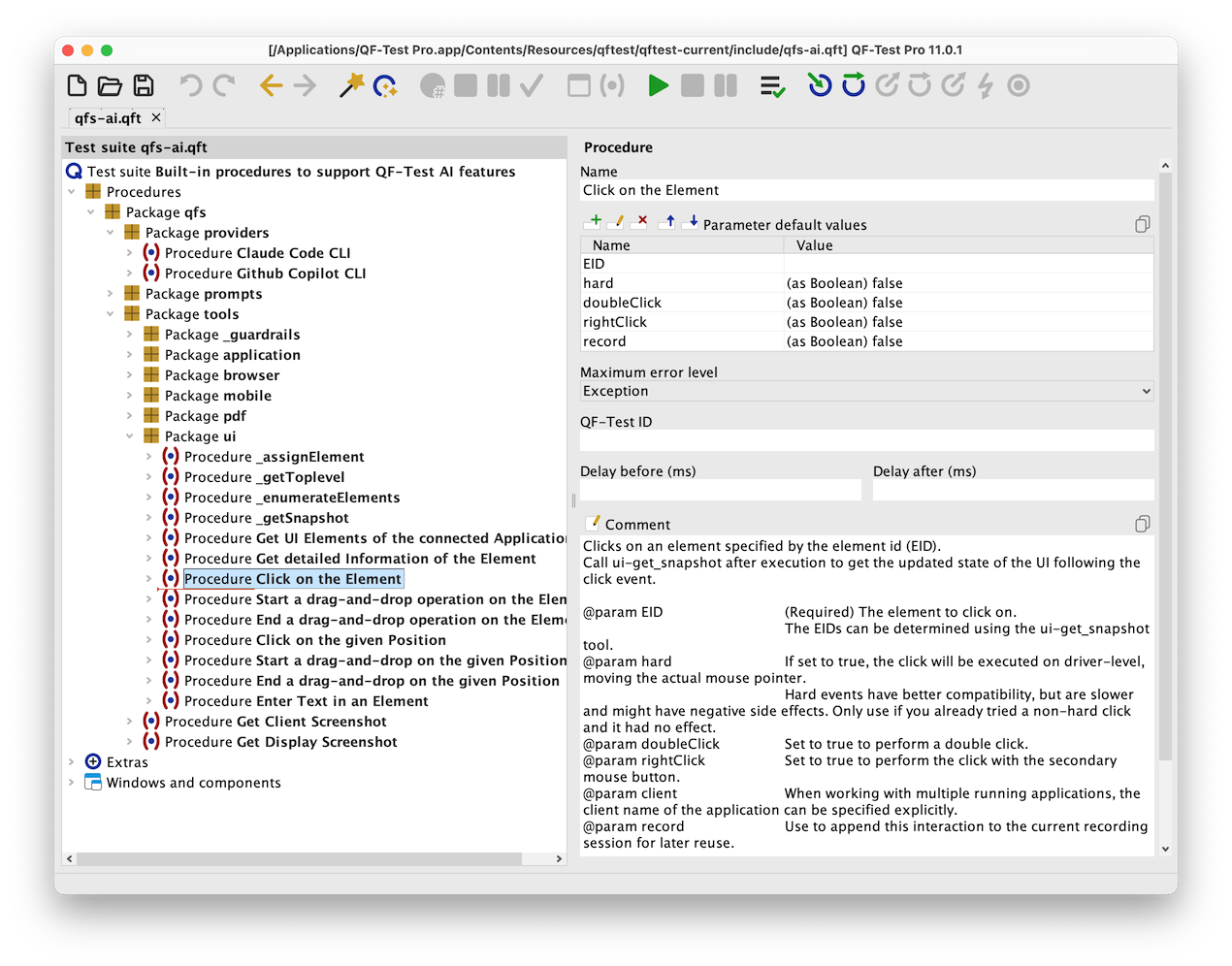
The procedures shipped in our standard library qfs-ai.qft are a good reference for the level of detail that works well.
Naming tools: the @mcp/name doctag
MCP tool names have a hard limit of 64 characters. QF-Test derives a tool’s name from its package and procedure name and truncates automatically when needed.
If you’d rather not rely on automatic truncation, use the @mcp/name doctag to give a procedure or a package a short alias for MCP use, independent of how it’s named and organized internally.
Overriding the built-in AI tools
The general-purpose procedures shipped in qfs-ai.qft (under qfs.tools.ui) are meant to work reasonably well out of the box, but they can also serve as a blueprint for your own, more specific variants, for example if you want your “Open Browser” tool to launch with specific browser settings or your own CustomWebResolver instead of the defaults.
To override a built-in tool, provide a procedure with the same name in user-ai.qft; it will be used instead of the general-purpose one. (You can open the user-ai.qft suite in QF-Test via “File → Bookmarks → AI: User library”.) If you still want access to the original helper procedures from within your override, include ${qftest:version.dir}/include/qfs-ai.qft in your suite.
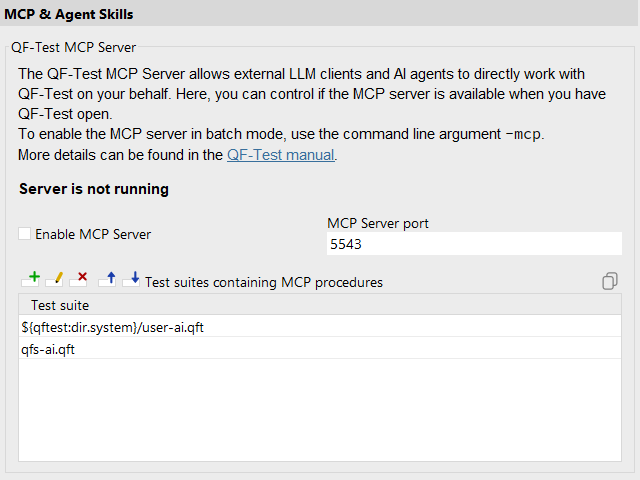
Configuring your own AI tool library suite in the QF-Test settings.
Configuring your own AI tool library suite in the QF-Test settings.
Internal vs. external tools, and permissions
QF-Test distinguishes between two ways a tool can be used:
- External tools are called by external MCP clients connecting to the QF-Test MCP server.
- Internal tools are used from within QF-Test itself — currently the “AI Instruction” node, the test generation wizard, and
ai.askWithTools()in scripts.
In the QF-Test options dalog you can define for each tool individually whether it should be available for internal and/or external AI agents. The permission model differs between the two: QF-Test currently never asks for confirmation before running an internal tool, while external MCP clients generally ask for permission the first time a tool is used. Keep that in mind and be careful about which tools you enable internally.
You can use @mcp/exposedByDefault false so users need to explicitly enable the tool in the QF-Test settings, instead of automatically cluttering every users default context window.
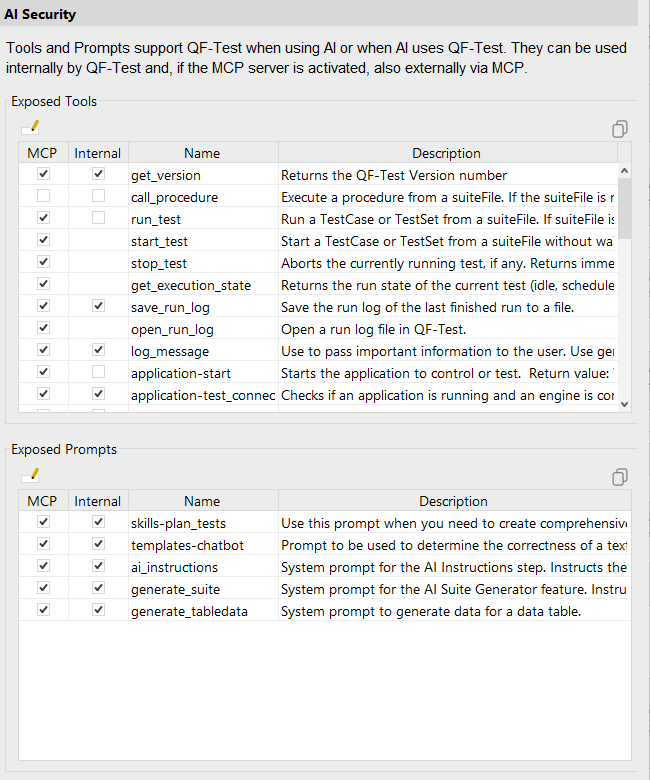
Enabling and disabling individual internal and external tools in the AI security settings.
Enabling and disabling individual internal and external tools in the AI security settings.
Building your own MCP toolkit
The core idea behind all of these practices is the same: a well-curated MCP toolkit will make your AI agent both faster and more reliable than only handing it a large, generic set of low-level actions. Start small, apply @mcp/name and clear descriptions from the outset, and grow your toolkit as concrete use cases show you what’s worth wrapping.
For the full reference on the available doctags, see the “MCP Server” chapter of the QF-Test manual.