
19.3 A11y run logs and reports
There are specific tips, tricks, and considerations for working with the run log and generating a report (Reports and test documentation) for accessibility tests.
19.3.1 Working with the run log
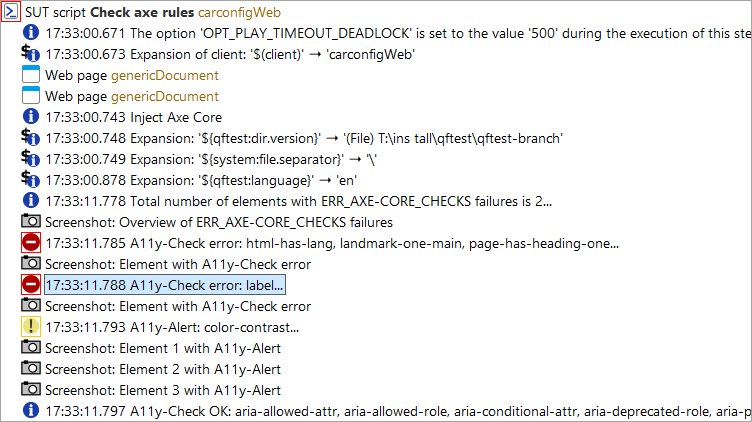
After each accessibility test, a run log is created for error analysis.
The following figure shows the complete message for the selected error:
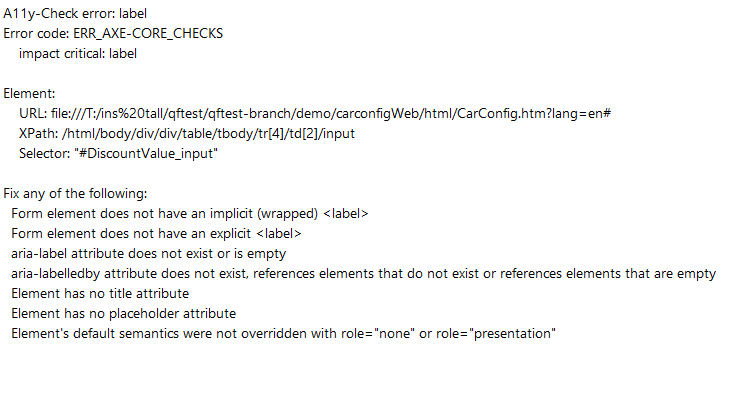
Error messages list elements that do not meet specific accessibility criteria.
The associated error and additional information, such as remediation suggestions, are described in
the
error message.
For elements that could not be checked against a specific rule due to issues such as being covered
by
another
element, warnings are logged.
Depending on the value of
Show successful checks,
successfully executed checks can also be listed as information in the run log.
NoteQF-Test logs, in addition to screenshots, various identifiers of the elements, such as the XPath or, if needed (Log element SmartID to message), the SmartID. The SmartID can be used to address the element within QF-Test. The XPath can be used to find the element in a web browser via its developer tools.
QF-Test also generates a screenshot of the tested page with problematic and skipped elements highlighted.
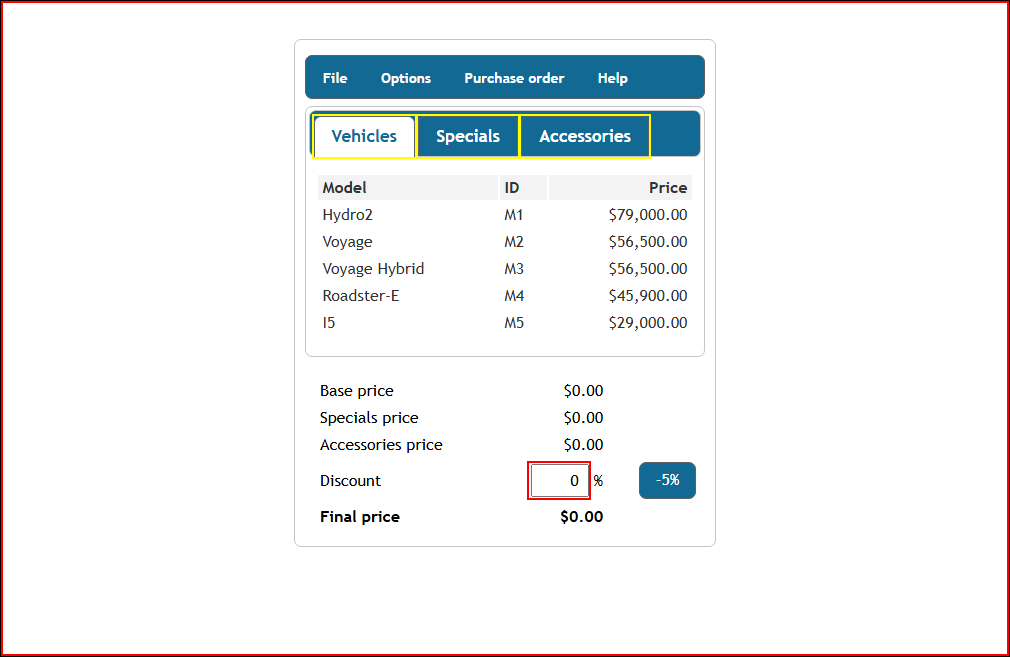
Problematic elements are outlined in red, skipped elements in yellow.
NoteFor the most accurate screenshots and element highlighting, set both the display and browser scaling to 100%.
19.3.2 Notes on report generation
When creating the report, it is recommended to include the images of the elements generated for the errors in the report. To do this, "Embed thumbnails" must be selected in interactive mode. A fixed value, such as 300×200 pixels, is suitable for scaling the thumbnails.
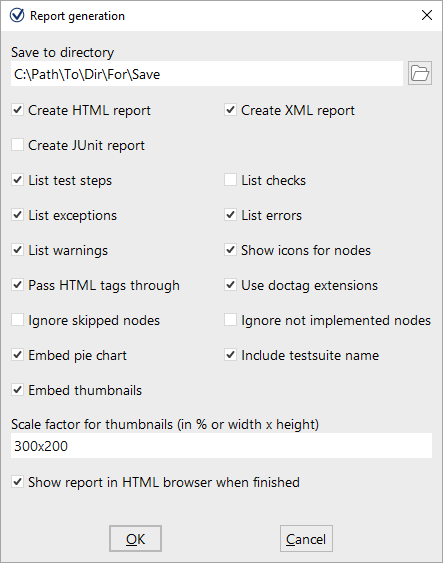
The command-line arguments for batch mode are -report-thumbnails
and -report-scale-thumbnails <percent>.