
AI26 Using Artificial Intelligence
By integrating artificial intelligence (AI), QF-Test provides a powerful tool that can assist users in creating, executing, and evaluating tests. The built-in AI features range from simple result checks, through a scripting module for communicating with LLMs, all the way to controlling QF-Test through AI agents.
Note To use the AI features in QF-Test, the AI component of QF-Test must be enabled (see "Block AI features"). This is the case with a standard installation.
26.1 Bring your own model
QF-Test deliberately does not ship its own AI model. Instead, QF-Test integrates models you are already using. This configurability offers many advantages. For example, when using company-internal or locally hosted models, you can retain full control over data flows, storage locations, and access rights. Costs can be better controlled and the model can be matched to the task - giving you influence over execution speed, for instance.
Note The quality of the chosen model directly affects the quality of the test results and the runtime, especially for more complex, multi-step, or lengthy tasks such as test generation AI. More capable models generally produce more robust responses, but may require more resources. Conversely, smaller models can be faster and more cost-effective for simple tasks.
26.2 Setting up AI
An external AI is required to use AI features - QF-Test does not ship its own model. AI configurations can be specified under »Settings« - »Artificial Intelligence« (see "Artificial Intelligence").
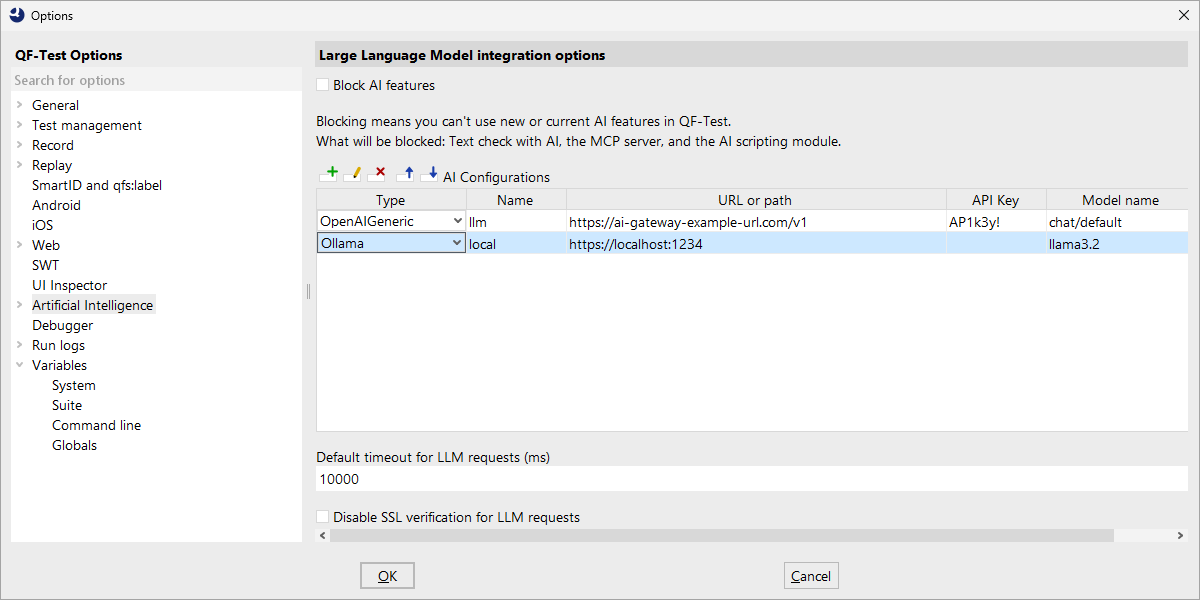
Once the required parameters have been entered, the AI is referenced by its name. The first defined configuration is used by default; the default model can also be changed via a script call (see "Scripting with AI").
Note If desired, all AI features in QF-Test can be disabled via »Settings« - »Artificial Intelligence« - "Block AI features".
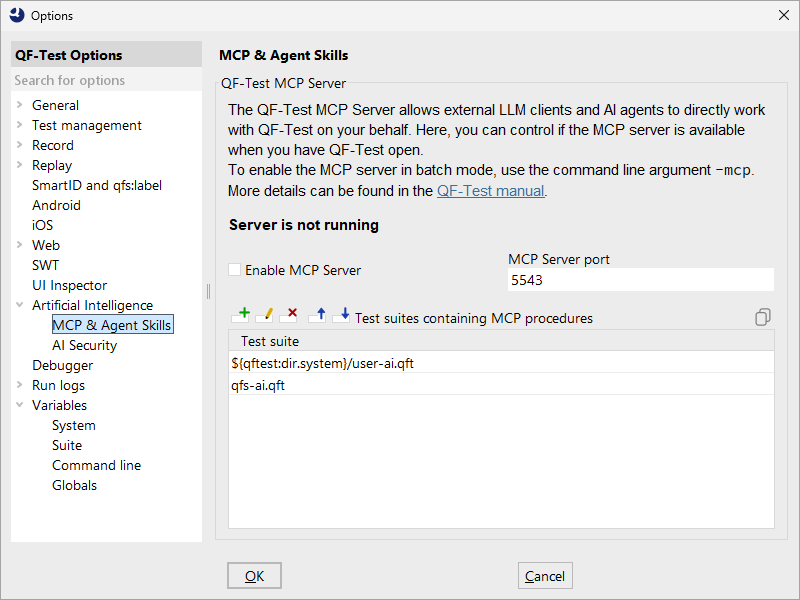
In the »Agent Skills« menu ("Agent skills options") the MCP server can be enabled and configured.
By specifying "Test suite files for MCP tools and prompts", tools and predefined prompts are made
available to the AI. The tools available by default are listed in qfs-ai.qft,
but can be extended and overridden by entries placed higher in the table
(such as user-ai.qft).
Each tool and prompt can be enabled or blocked for internal use by QF-Test or for exposure via the MCP server in the »AI Security Options« menu ("AI security options"). This keeps you in control of the context and capabilities of your agentic AI.
More detailed information on all configuration options can be found under "Artificial Intelligence".
26.2.1 Setting up CLI tools (Claude Code, GitHub Copilot)
Connecting to Claude Code or GitHub Copilot works differently from other AI providers.
Instead of a URL, you provide only the path to the CLI binary. If no path is set,
QF-Test automatically searches the standard installation locations (such as
~/.local on Linux and Homebrew directories on macOS).
The model name is also optional. If no model is specified, a sensible default is
used (for example, auto for GitHub Copilot).
A local installation does not require an API key, this value can be left empty.
Note
The CLI arguments visible in qfs-ai.qft under
Procedures -> qfs -> providers are managed by QF-Test automatically
and do not normally need to be edited manually to use the CLI tools.
They are publicly visible for two reasons:
- Transparency: QF-Test uses the CLI binary to perform requests and call tools on your behalf without prompting you to approve each individual tool call. This is safe because only the QF-Test tools are available to the CLI, but we want you to understand how the integration works.
-
Emergency override: If the provider changes the CLI interface in
a way that breaks the QF-Test integration, you can adjust the CLI parameters in
qfs-ai.qftas a temporary fix until the next QF-Test update.